SC HACKER

Attention to all : If you want to ask something because you are having problem or you can't figure out what i posted..Post a Comment and Participate on this site.. I need to know which topic you like me to post more.. and if you like my post or you've been help by my post.. you can thank me at the comment box.. and always remember to scan all the files first before you open or install..all files are download at your own risk, i am not responsible for any damage done into your computer..

twitter Displaying the messages through twitter is essentially on page apart like Kang Rohman’s, which addressed at http://twitter.com/rohman24. Nevertheless, besides on its original page, the messages can be displayed on your blog.
There are two options to place the twitter widget in to blogger, that is automatically (special for those who use new blogger layout) and manually (for new blogger layout and classic blogger layout). Here are the steps:


Automatically (special for new blogger layout):
  1. Please sign in to twitter.com with your ID
  2. Click Setting menu which is on the top-right of monitor screen
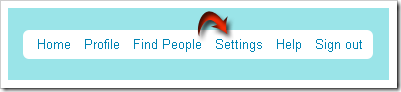
    setting
  3. Click “You can also add Twitter to your site” link
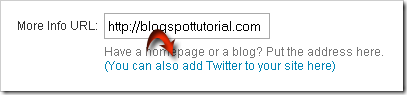
    addblogpng
  4. Click Blogger logo, then click Continue button  which is on bottom-right
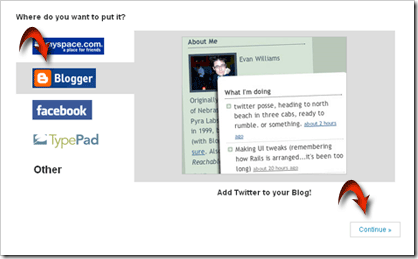
    continue
  5. Click “Add to blogger” banner, and automatically it brings you to blogger log in page

    addtoblog
  6. Log in to blogger with your ID
  7. Choose the blog that you want to add the twitter widget
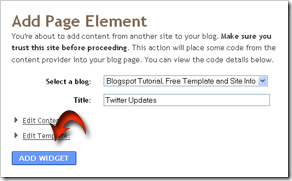
  8. Click Add Widget button
    chooseblog
  9. The Widget will be added automatically to your blog
  10. Done

Manually (special for new blogger layout)
Step #1
  1. Please sign in to twitter.com with your ID
  2. Click Setting menu which is on the top-right of monitor screen
  3. Click “You can also add Twitter to your site here” link
  4. Click blogger logo, then click Continue button which is on bottom-right copycode
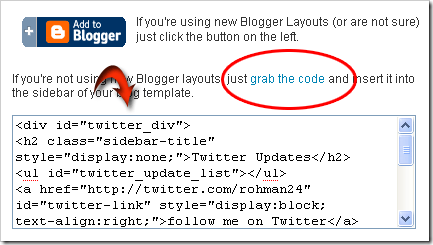
  5. Copy the code given, paste it on notepad to make it easier
  6. Step #1 Done
Step #2
  1. Please log in to blogger with your ID
  2. Click Layout
  3. Click Page Element tab
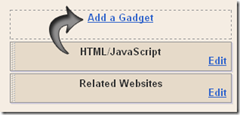
  4. Click Add a gadget
    addgadget
  5. Click the sign (+) for HTML/JavaScript
    html
  6. Copy the code that you get from twitter before, paste into the available column
  7. Click Save button
  8. Done
Now your messages from twitter will be displayed on your own blog.
Good luck and don’t forget follow me on twitter

Now here is wonderful hack for displaying links to related posts beneath each of your blog posts. The related articles are chosen from other posts in that same category/label/tag. With this hack many of your readers will remain on your site for longer periods of time when they see related posts of interest.


Updates:

If your related posts have not been showing up lately: See How to Fix!

Steps for Implementation:
  1. Go to Layout >Edit HTML in your Blogger Dashboard.
  2. Back up your existing Template before making any changes!
  3. Make sure to check the "Expand Widget Templates" box.
  4. Search for the tag.
  5. Add the following code just before the tag.

  • Now Save your Template and you're done!

  • Customization
    • In order to change the number of maximum related posts being displayed for each label, search for the code below (within the code given in step 7) and change the number "5" to any desired number.
    • max-results=5

    Google Buzz is a great social tool which is very similiar to Twitter and Facebook. It's a wonderful way to engage and interact with your readers! Make sure to implement these Google Buzz buttons into your blogger posts, so that users can easily share your content on Google Buzz.


    Add Google Buzz it Button to Blogger

    1. Go to Layout >Edit HTML in your Blogger Dashboard.
    2. Back up your existing Template before making any changes!
    3. Make sure to check the "Expand Widget Templates" box.
    4. Here is the Google Buzz it Code:
    5. Search for this line of code in your template:
      and place the Google Buzz it Code right after the code you searched for above.
      If this doesn't work, then search for this code below and place the Google Buzz it Code directly before it.
    6. Now save your template and you're done!

    Add Google Buzz Button with Share Count to Blogger

    1. Here is the Google Buzz it with Share Count Code